

Updated 14 February 2026
So, you’ve found the perfect match on HelperChoice—how exciting! Now comes the part that can feel a little like a mountain of paperwork: the DMW e-Registration.
Don’t worry, though. While it sounds technical, it’s really just a digital “home” for your employment details. Think of it as your official passport to a great working relationship in Hong Kong. Let’s break it down together, step-by-step, so you can get through the “admin stuff” and get back to what really matters.
What Exactly is DMW E-Registration?
In the past, people called this “POEA e-Reg.” Today, it’s handled by the Department of Migrant Workers (DMW). It’s a mandatory online portal where every Filipino domestic helper builds their professional profile.
It’s actually a great thing—it keeps your records safe, proves you’re a legal worker, and makes sure you get your OEC (Overseas Employment Certificate) so you can fly without any hiccups at the airport!
Here is the link to DMW’s E-registration: https://onlineservices.dmw.gov.ph/OnlineServices/POEAOnline.aspx
The Helper’s Journey: Creating Your Profile
Whether you have prior experience abroad or this is your first time, the steps are pretty straightforward.
Are You a First-Timer? (Welcome!)
- The “PEOS” First: Before you sign up, you’ll need to do a quick, free online seminar called the PEOS. It’s super helpful and tells you all about your rights.
- Get Your Numbers Ready: Have your Pag-IBIG number handy. The system likes everything to be “just right,” so make sure your name matches your passport exactly!
Ex-Abroad? (Welcome Back!)
- One Account Only: If you’ve worked abroad before, you already have a “digital home.” Use the “Forgot Password” link if you can’t remember your login. Pro-tip: Creating a second account is the #1 cause of delays, so stick with your original one!
- Update Your Wins: If you’ve finished a new domestic helper training course or learned a new cuisine, add it in! It shows how much you’ve grown.
Step-by-Step: Setting Up Your DMW E-Registration
Step 1: The “Prep” Work (PEOS First!)
Before you can even create an account, you must complete the Pre-Employment Orientation Seminar (PEOS).
- Go to the PEOS Online website.
- Watch the modules (they explain your rights and how to avoid scams).
- Save your PEOS Number. You’ll need this to register your main account.
Step 2: Create Your Account
- Visit the DMW Online Services Portal.
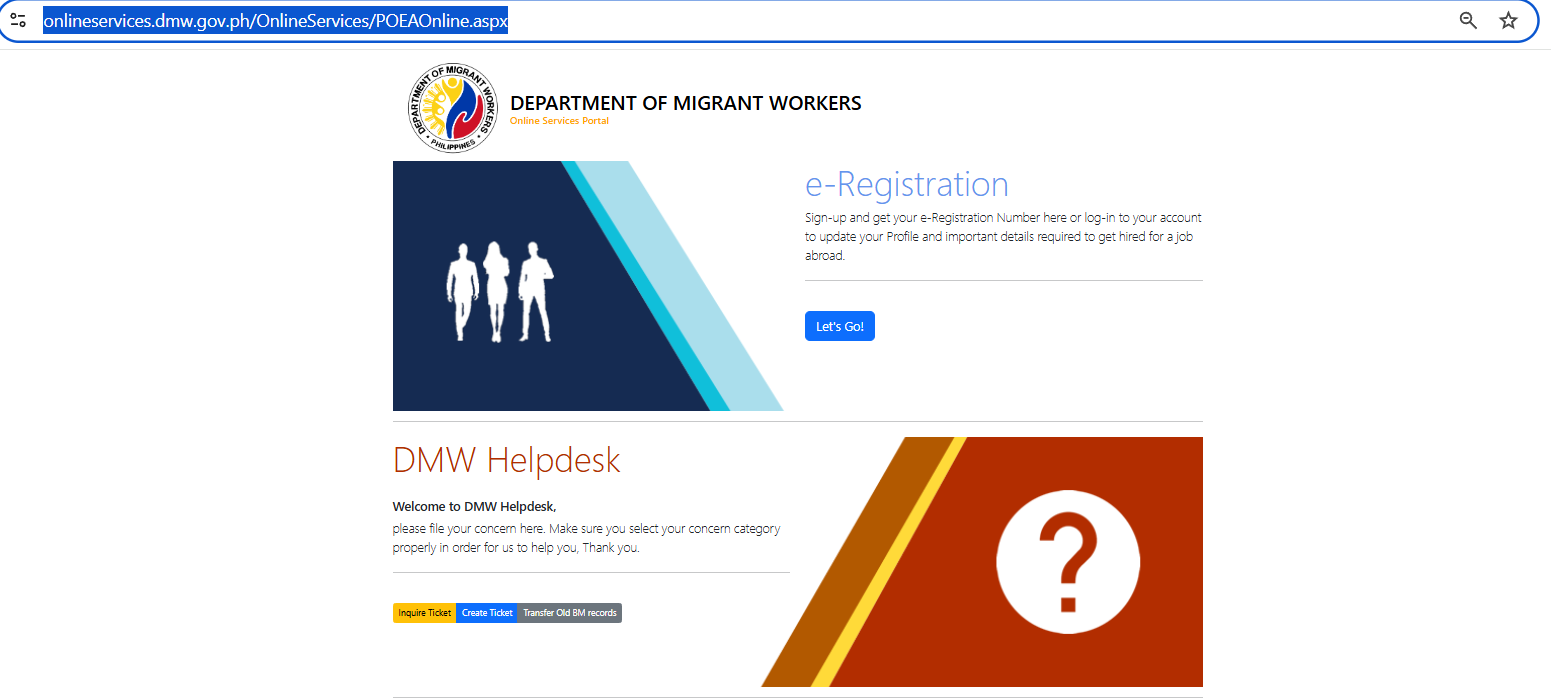
- Click “Register” and accept the Terms of Use.
- Important: Use your legal name exactly as it appears on your passport. If your passport says “Ma. Theresa” and you type “Maria Theresa,” it will cause delays later.
Step 3: Activate via Email
- Check your inbox for a message from DMW. It will contain a temporary password.
- Log back in and immediately change your password to something you’ll remember.
Step 4: Build Your Professional Profile
This is where you show you’re ready for the job. You’ll need to fill in:
- Personal Data: Your address, SSS, PhilHealth, and Pag-IBIG numbers.
- Passport Details: Enter your passport number and expiry date carefully.
- Education: Where you went to school.
- Experience: List your previous jobs, especially any past work as a domestic helper.
Step 5: Upload Your Documents
Don’t skip this! You need to upload clear, readable scans of:
- Your Passport (Data Page).
- Your domestic helper training certificates (like TESDA NC II).
- A professional photo (white background, no filters).
Step 6: Review and Submit
Check your dashboard. If it says “Incomplete,” look for the red text—it will tell you what’s missing (usually a missing document or the PEOS number). Once it says “Complete,” you are officially in the system!
Reminders for Agency vs. Direct Hire
- Through an Agency: Your recruitment agency will help link your contract to your profile.
- Direct Hire: If you’re a “Direct Hire” (finding your employer yourself), you’ll need to be a bit more “hands-on” to make sure your verified contract shows up in your portal.
Employers: Why Your “Check-In” Matters
You might think, “This is the helper’s task, right?” Well, yes—but a little bit of support from you goes a long way!
When you follow up on the DMW e-registration, you’re doing more than just checking boxes. You’re making sure your helper’s arrival isn’t delayed by a simple tech glitch. A quick ask like, “How’s the e-Reg going? Do you need help with a scan?” shows you’re a supportive employer. Plus, it’s the best way to ensure domestic worker welfare is handled correctly from day one.
A Foundation of Trust
At HelperChoice, we know that behind every login and every form is a person working for a better future and a family looking for a helping hand. We’re here to make sure that the technical side of things feels as human and supportive as possible.
Growing Together
Paperwork is just a small bridge to cross on the way to a great partnership. Whether you’re an employer ready to welcome someone new or a helper ready to start your next adventure, we’re cheering you on.
Need a hand with your next step?
Employers: Find your Ideal Helper and Start Your Journey
Helpers: Register and create your profile to match with an employer!
Good